
Free Browser-Based Image Compressor & Cropper (No Uploads)
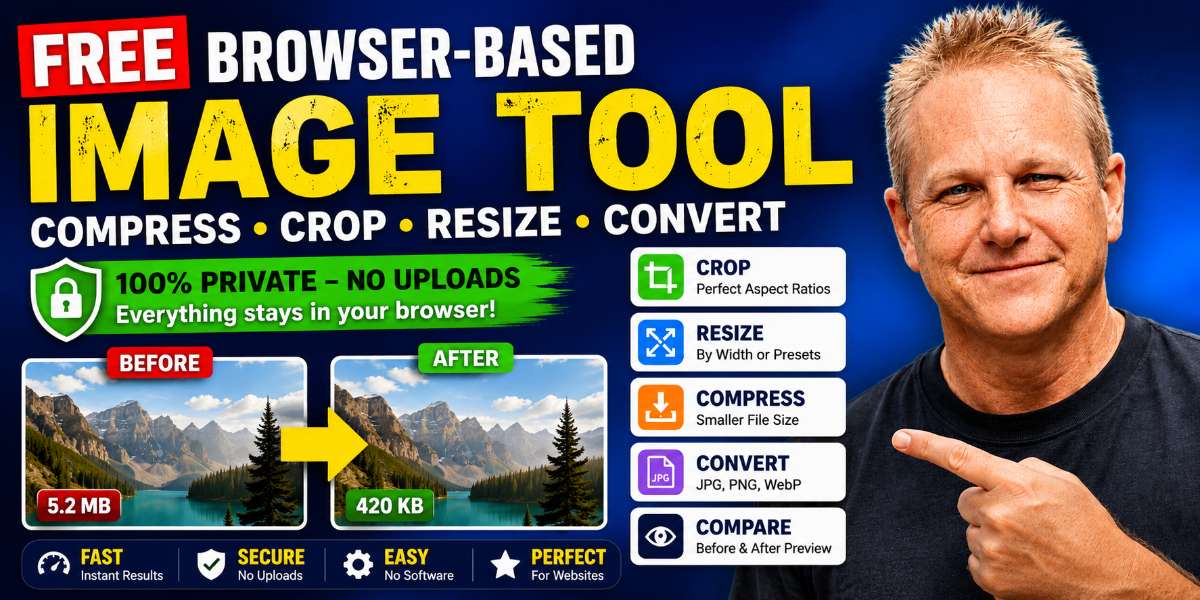
This free browser-based image compressor lets you crop, resize, compress, and convert JPG, PNG, and WebP images directly in your browser without uploading them to a server.
Optimize images for blogs, WordPress, Shopify, WooCommerce, landing pages, YouTube thumbnails, and faster-loading websites — while keeping your images private on your device.

Private Browser-Based Image Cropper & Compressor
Crop, resize, compress, and convert JPG, PNG, and WebP images directly in your browser. No uploads required.
No image selected yet.

Watch Instructional Video – HERE
Why Use a Browser-Based Image Compressor & Cropper?
A browser-based image compressor and cropper processes your image locally inside your own web browser. That means the image is handled directly on your device instead of being uploaded to a remote server.
That difference matters.
Many online image compression and cropping tools require you to upload your image before you can resize it, crop it, reduce the file size, or convert the format.
Sometimes that is fine.
Other times, it is not ideal.
For example, you may not want to upload:
- personal photos
- client screenshots
- private business graphics
- invoices or documents saved as images
- unreleased product photos
- website mockups
- internal marketing assets
- images containing sensitive information
- thumbnails or graphics for upcoming launches
This private browser-based image compressor and cropper keeps your workflow local.
You choose the image, crop it, resize it, compress it, convert it, preview the result, compare versions, and download the final image — all inside your browser.
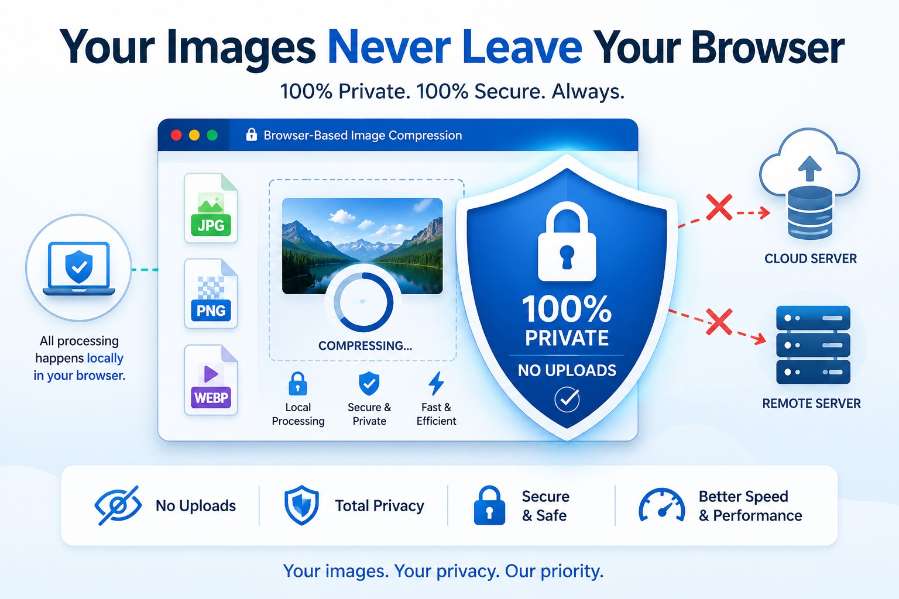
The main benefits are simple:
- No uploads required — your image is not sent to a server.
- Better privacy — the image stays on your device.
- Faster workflow — no waiting for large files to upload first.
- No account needed — use the tool directly.
- No watermark — download the compressed image cleanly.
- Instant image previews – See how you images are going to look
- Local browser-based processing – No need to upload to random servers
- Easy image optimization s — reduce file size before uploading to WordPress, Shopify, WooCommerce, or your blog.
This makes the tool especially useful if you want:
- a browser-based image compressor
- an image compressor without uploads
- a private image cropper
- a local image resizer
- a WebP converter
- an image cropper for YouTube thumbnails
- a featured image cropper for blogs
What Does This Free Image Compressor & Cropper Do?
This tool combines several useful image optimization features into one browser-based workflow.
You can use it to:
- compress JPG images
- compress PNG images
- compress WebP images
- crop images before compressing
- resize images by maximum width
- drag and reposition crop areas
- resize crop areas manually
- use preset aspect ratios
- crop YouTube thumbnails
- crop blog featured images
- crop social media images
- convert WebP to JPG
- convert PNG to JPG
- convert final images to WebP
- compare original and compressed previews
- compare file sizes before downloading
- keep images private inside your browser
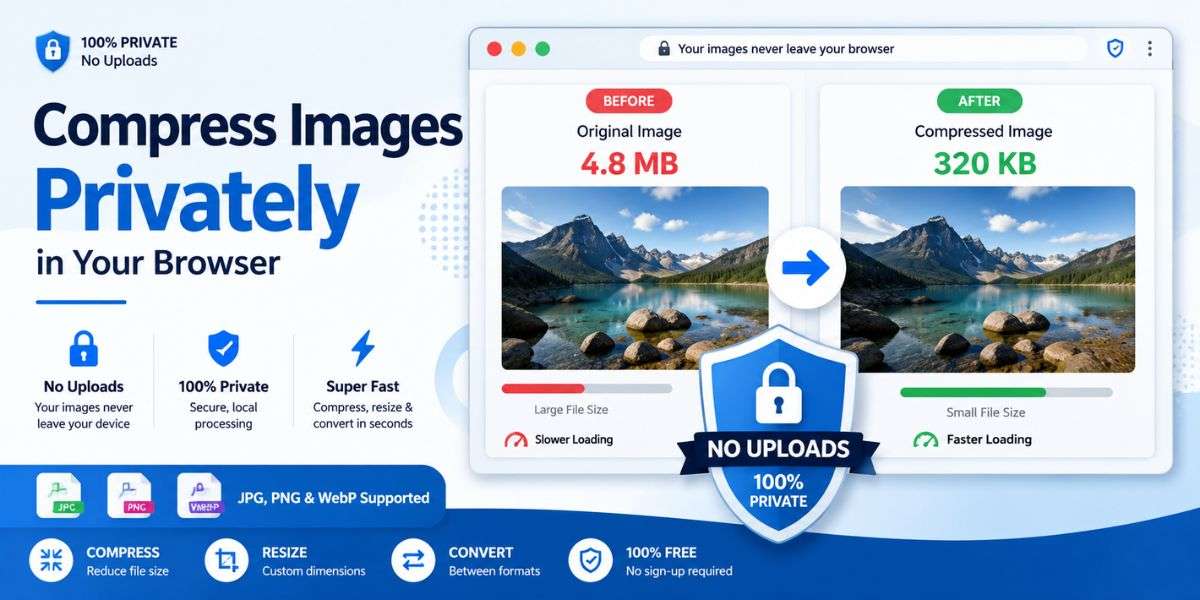
That gives you a complete image optimization workflow for:
- blogs
- WordPress websites
- Shopify stores
- WooCommerce product pages
- landing pages
- YouTube thumbnails
- Pinterest graphics
- TikTok and Shorts images
- marketing pages
- social media posts
- online businesses

Crop Images for Websites, Blogs & Social Media
One of the biggest upgrades in this tool is the ability to crop images before compressing them.
That matters because oversized or badly formatted images can ruin the appearance of a blog post, YouTube thumbnail, product page, or social media graphic.
Instead of uploading an image into Photoshop or another editor first, you can now:
- select a crop preset
- reposition the crop area
- resize the crop area
- preview the crop
- compress the final image
- download the optimized result
All directly inside your browser.
Why Aspect Ratios Matter
Aspect ratio simply describes the shape of an image.
For example:
- 1:1 = square
- 16:9 = landscape widescreen
- 9:16 = vertical portrait
- 2:1 = wide blog featured image
- 4:3 = traditional photo shape
Using the wrong aspect ratio can cause:
- stretched images
- awkward thumbnails
- cropped social previews
- inconsistent blog layouts
- poorly formatted YouTube thumbnails
- oversized featured images
That is why the tool includes preset crop ratios.
Best Aspect Ratios for Different Uses
1:1 Square Images
Best for:
- Instagram posts
- profile images
- marketplace listings
- product thumbnails
- square social graphics
16:9 Landscape Images
Best for:
- YouTube thumbnails
- blog banners
- landing page hero images
- widescreen graphics
- featured content images
9:16 Vertical Images
Best for:
- TikTok
- Instagram Reels
- YouTube Shorts
- Pinterest Idea Pins
- mobile-first social content
2:1 Featured Images
Best for:
- WordPress featured images
- Kadence blog layouts
- blog post banners
- hero graphics
- wide website headers
4:3 Standard Images
Best for:
- tutorials
- screenshots
- general web content
- product support images
- informational graphics
How to Crop Images Without Uploading Them
This tool makes browser-based image cropping simple.
Here is the process:
- Click Choose Image.
- Select your JPG, PNG, or WebP image.
- Enable Crop Image Before Compressing.
- Choose a crop preset.
- Click Apply Crop Preview.
- Drag the crop box to reposition the image.
- Resize the crop area using the blue corner handle.
- Preview the crop.
- Choose your compression settings.
- Compress and download the final image.
The image processing happens locally inside your browser.
You are not uploading your image to a remote server first.
Compress JPG Images
JPG files are one of the most common image formats online.
They are usually best for:
- blog images
- featured images
- travel photos
- food photography
- lifestyle content
- website banners
- thumbnails
- product photos without transparency
Large JPG files from phones, cameras, Canva exports, or design tools are often much larger than needed for websites.
This tool lets you:
- reduce JPG quality
- resize the image width
- crop the image first
- convert formats if needed
- preview the result before downloading
That can dramatically reduce file size while keeping the image visually sharp enough for blogs and websites.
Compress PNG Images
Compress PNG Images
PNG files are often used for:
- logos
- screenshots
- diagrams
- transparent graphics
- interface mockups
- text-heavy images
PNG files can become very large.
This tool allows you to:
- compress PNG images
- resize PNG files
- crop PNG graphics
- convert PNG to JPG
- optimize screenshots for websites

If your PNG image does not require transparency, converting it to JPG may reduce the file size significantly.
Compress WebP Images
WebP is a modern image format designed for fast-loading websites.
Many websites and optimization plugins already use WebP because it can create smaller file sizes than JPG or PNG.
This tool allows you to:
- resize WebP images
- compress WebP files
- crop WebP graphics
- convert WebP to JPG
- compare WebP and JPG sizes
However, because WebP is already efficient, converting WebP to JPG can sometimes increase the file size.
If that happens, the tool displays a warning before download.
Convert Final Images to WebP
The tool also includes the ability to convert the final compressed image into WebP format.
That gives you another way to reduce file size for websites, blogs, and landing pages.
In many cases, WebP can create smaller image files while still maintaining good visual quality.
However, not every image becomes smaller as WebP.
That is why the tool includes:
- before-and-after comparison
- WebP file size reporting
- warnings if the WebP version becomes larger
- the ability to revert back to the previous final image
This gives you more control instead of blindly converting formats.
Convert PNG to JPG
PNG to JPG conversion is often useful when you want a smaller file and do not need transparency.
For example, if you have a PNG screenshot, Canva graphic, product image, or blog image that does not need a transparent background, converting it to JPG may reduce the file size.
However, JPG does not support transparency. If your PNG has a transparent background, converting it to JPG will remove that transparency and replace it with a solid background.
That is why the tool includes a note under the output format option. It gives you control instead of silently changing the file type without warning.
Resize Images for Websites and Blogs
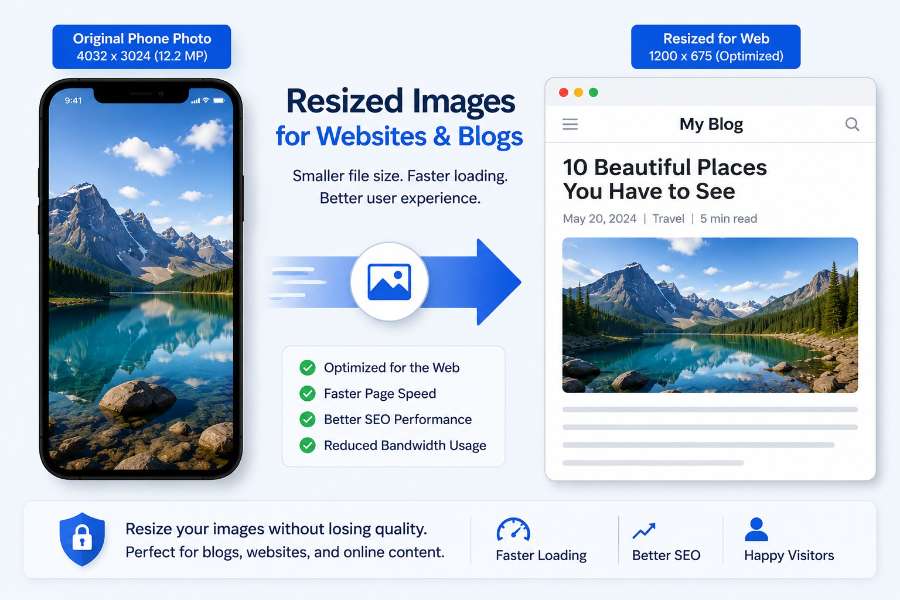
Modern phones and cameras create very large images.
A photo from your phone may be 4000 pixels wide even though your website only displays it at 800 to 1200 pixels.
Uploading oversized images wastes:
- bandwidth
- loading speed
- mobile performance
- server resources
The max-width option lets you resize images before downloading them.
The tool automatically maintains the aspect ratio so the image does not stretch or distort.
This is useful for:
- blog featured images
- WordPress content images
- Shopify product photos
- WooCommerce stores
- landing pages
- YouTube thumbnails
- social graphics
Why Image Compression Matters for Website Speed & SEO
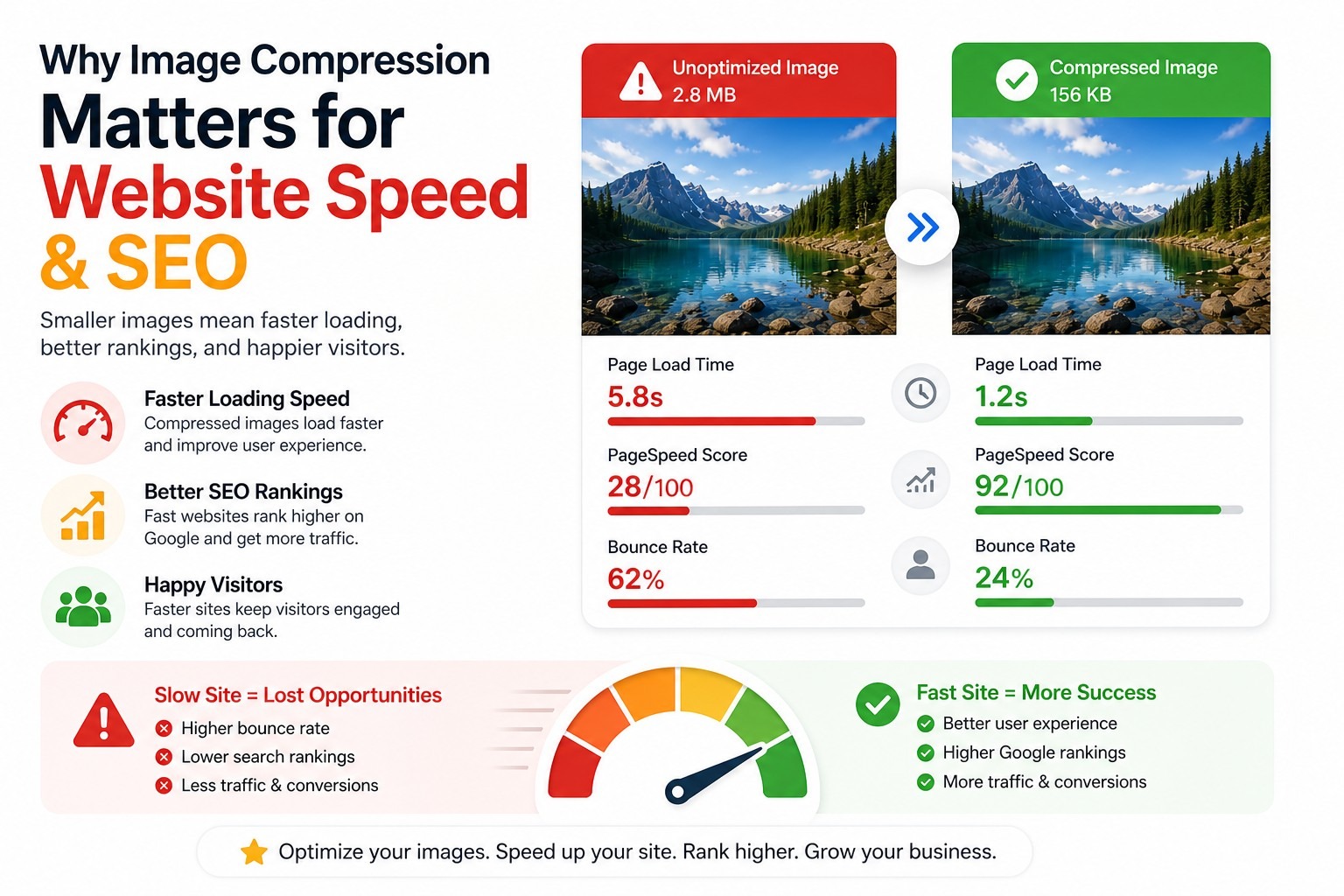
Image compression matters because images are often one of the largest parts of a web page.
A blog post with several oversized images can load slowly, especially on mobile internet. An online store with heavy product photos can feel sluggish. A landing page with massive graphics can frustrate visitors before they ever read your offer.
When you reduce image file sizes, you can improve:
- page loading speed
- mobile performance
- user experience
- bandwidth usage
- WordPress media library efficiency
- Shopify and WooCommerce product page performance
- blog post readability
- search engine optimization
Search engines want to send users to pages that load quickly and provide a good experience. Visitors also tend to leave slow pages faster. Therefore, image optimization can support both SEO and conversions.
This matters for more than just bloggers.
Bloggers and WordPress Users
Bloggers often upload featured images, screenshots, tutorial images, recipe photos, travel images, and social graphics. If those images are too large, every post becomes heavier than it needs to be.
Before uploading images to WordPress, it is smart to:
- resize the image to a sensible width
- compress the file
- use the right format
- avoid uploading huge original camera files
A private browser-based image compressor makes this simple because you can optimize the image before it ever reaches your website.
Shopify, WooCommerce, and eCommerce Stores
Product images matter for online stores. They need to look good, but they also need to load quickly.
Large product images can slow down:
- category pages
- product pages
- image galleries
- mobile shopping experiences
- checkout journeys
If you run a Shopify store, WooCommerce shop, Etsy-style product page, digital product store, or small business website, compressed images can help your pages feel faster and smoother.
That does not mean you should destroy image quality. It means you should avoid uploading files that are much larger than needed.
Landing Pages and Marketing Pages
Landing pages often use hero images, banners, icons, testimonials, screenshots, and product mockups. If those files are oversized, the page can feel slow before your message even appears.
Compressing and resizing images before uploading them can help your sales pages load faster and feel more professional.
JPG vs PNG vs WebP: Which Format Should You Use?
Choosing the right image format matters. JPG, PNG, and WebP each have different strengths.
JPG Images
A JPG is usually best for photos and general web images.
Use JPG for:
- blog photos
- featured images
- travel photos
- food images
- lifestyle images
- product photos without transparency
- website banners
- thumbnails
JPG files are often smaller than PNG files. They are great when you want a good balance between image quality and file size.
The trade-off is that JPG uses lossy compression. That means the image can lose some detail as you reduce the quality level. However, for normal website use, a properly compressed JPG can still look excellent.
PNG Images
PNG is best when you need crisp graphics or transparency.
Use PNG for:
- transparent logos
- icons
- screenshots
- diagrams
- text-heavy graphics
- images with sharp edges
PNG files can be larger than JPG files, especially for photos. However, PNG can preserve transparency, which JPG cannot.
If your PNG image does not need transparency, converting it to JPG may reduce the file size.
WebP Images
WebP is a modern web image format designed for efficient website performance.
Use WebP when:
- your website supports it
- you want smaller web images
- you are optimizing for page speed
- you are using image optimization plugins or CDNs
WebP can often produce smaller files than JPG or PNG while keeping good visual quality. However, because WebP is already efficient, converting WebP to JPG does not always reduce size. Sometimes it increases it.
That is why this tool warns you if the output file becomes larger than the original.
Compare Original vs Compressed Images
The tool includes a compare preview feature.
This allows you to:
- switch between the original and final image
- compare crop changes
- compare compression quality
- review resizing results
- preview WebP conversions
That gives you more confidence before downloading the final image.
How to Compress Images Without Uploading Them
This tool is designed to make image compression simple.
Here is the basic process:
- Click Choose Image.
- Select a JPG, PNG, or WebP file from your device.
- Crop or resize the image if needed.
- Choose a compression preset or adjust the quality slider.
- Enter a max width if you want to resize the image.
- Choose whether to keep the original format or convert to JPG or WebP.
- Click Compress Image.
- Preview the result.
- Download the compressed image.
The key difference is that the image processing happens in your browser.
You are not uploading the image to a server, waiting for a remote tool to process it, then downloading it again. Instead, your browser reads the file locally, processes it, and creates a downloadable version for you.
That is why this works well as an image compressor without upload requirements.
How to Convert WebP to JPG
If you have a WebP file and need a JPG version, this tool can help.
Follow these steps:
- Click Choose Image.
- Select your WebP file.
- Under Output Format, choose Convert to JPG for Smaller File Size.
- Adjust the compression setting if needed.
- Resize the image if needed.
- Click Compress Image.
- Preview the result.
- Download the JPG file.
This is useful when another platform does not accept WebP files or when you need a more widely supported format.
However, remember that WebP files are often already optimized. If your converted JPG becomes larger than the original WebP, the tool will show a warning.
In that case, only download the JPG if you specifically need JPG compatibility.
How to Convert PNG to JPG
PNG files are useful, but they can also be large. If your PNG does not need transparency, converting it to JPG can often reduce the file size.
Follow these steps:
- Click Choose Image.
- Select your PNG file.
- Under Output Format, choose Convert to JPG for Smaller File Size.
- Choose a compression preset.
- Resize the image if needed.
- Click Compress Image.
- Preview the result.
- Download the JPG file.
This is especially useful for:
- screenshots
- Canva graphics
- blog graphics
- website images
- non-transparent product images
- large PNG exports
Just remember: JPG does not support transparency. If your PNG has a transparent background, converting it to JPG will remove that transparency.
Best Compression Settings for Different Uses
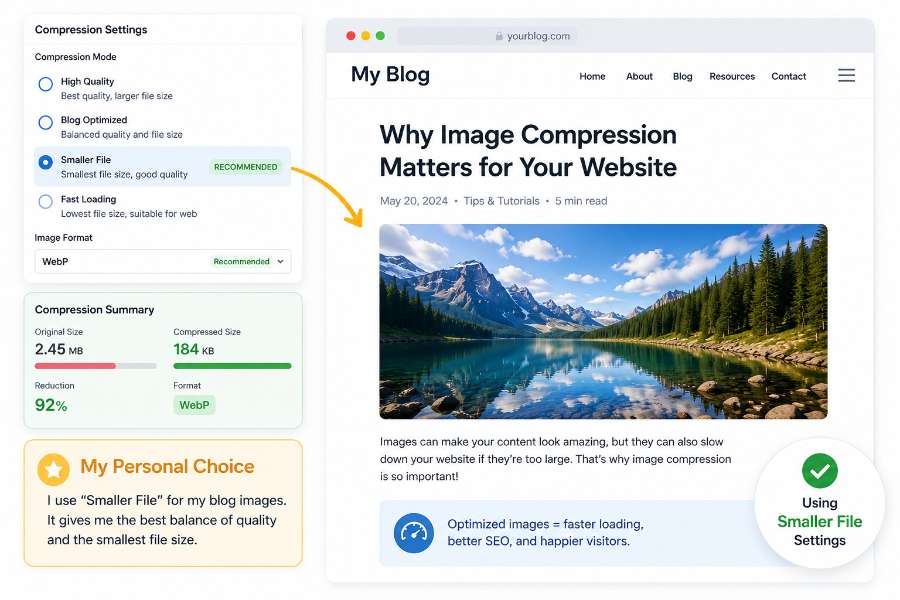
The tool includes several preset options to make compression easier.
High Quality
Use this when image quality matters more than file size.
Best for:
- photography
- portfolio images
- hero images
- product images where detail matters
- images you want to keep sharp
High quality usually creates a larger file, but it helps preserve more visual detail.
Blog Optimized
This is the best general setting for most blog images and website graphics.
Best for:
- WordPress blog posts
- article images
- featured images
- tutorial screenshots
- website content images
If you are not sure which setting to use, start here.
Smaller File
This is the setting i personally use for this blog in most cases.
Use this when you want a stronger reduction in file size while still keeping the image usable.
Best for:
- mobile-friendly images
- faster-loading pages
- content-heavy blog posts
- image-heavy tutorials
- product support images
Fast Loading
Use this when speed matters more than perfect image quality.
Best for:
- thumbnails
- small graphics
- quick previews
- low-priority images
- pages with many images
This setting can reduce file size more aggressively, so always check the preview before downloading.
Is This Image Compressor & Cropper Safe?
Yes.
This tool is designed around browser-side image processing.
Your images stay on your device instead of being uploaded to a remote server.
That makes it useful when working with:
- private photos
- business graphics
- client screenshots
- website mockups
- unreleased marketing assets
- sensitive documents saved as images
Compared with traditional upload-based tools, local browser-based processing provides stronger privacy control.
Common Reasons Images Become Too Large
Image files can become oversized for several reasons.
Modern Phone Cameras
Phone cameras can create large, high-resolution images. That is great for quality, but unnecessary for most website uploads.
A phone photo may be several thousand pixels wide, even if your blog only displays it at a fraction of that size.
Canva and Design Tool Exports
Canva graphics, banners, thumbnails, and social media images can sometimes export larger than expected, especially if you choose PNG or high-quality settings.
Before uploading those images to your website, compressing and resizing them can help.
Screenshots
Screenshots can become surprisingly large, especially full-screen captures, app screenshots, dashboard screenshots, or high-resolution monitor captures.
If the screenshot does not need transparency, converting PNG to JPG may reduce the file size.
Product Photos
Product photos need to look good, but they should not slow down your store. If you upload massive product photos to Shopify, WooCommerce, or another eCommerce platform, your product pages can become unnecessarily heavy.
Website Banners and Hero Images
Hero images often appear at the top of a page. If they are too large, they can slow down the first impression of the entire page.
Compressing and resizing hero images before uploading them is one of the easiest website speed improvements you can make.
Frequently Asked Questions
Does this tool upload my images?
No. Images are processed locally inside your browser.
Is this image compressor free?
Yes. The tool is free to use.
Can I crop images before compressing them?
Yes. The tool includes crop presets, drag repositioning, and manual crop resizing.
Can I resize YouTube thumbnails?
Yes. The tool includes YouTube-friendly aspect ratio presets.
Can I resize images for Instagram, TikTok, or Pinterest?
Yes. You can use square, vertical, and widescreen crop presets.
Can I compare the original and compressed image?
Yes. The compare preview feature allows you to switch between the original and final image.
Can I convert the final image to WebP?
Yes. The tool includes optional WebP conversion.
Why did WebP increase the file size?
Some images are already highly optimized. In certain cases, WebP conversion can create a larger file.
Can I compress PNG files?
Yes. PNG compression and conversion are supported.
Can I convert WebP to JPG?
Yes. Upload the WebP image, choose JPG output, compress the image, and download the result.
Can I convert PNG to JPG?
Yes. PNG to JPG conversion is supported.
Will image compression reduce quality?
Lower compression settings may reduce detail slightly. Always preview the result before downloading.
Can I resize images before compressing?
Yes. The max-width setting allows resizing while maintaining aspect ratio.
What image formats are supported?
JPG, PNG, and WebP.
Can I use this for WordPress images?
Yes. The tool is designed for website image optimization.
Can I use this for Shopify or WooCommerce product images?
Yes. Product image resizing and compression are supported.
Supporting Articles & Tutorials
- How to Optimize Images for SEO, Speed & User Experience
- The Ultimate Beginner’s Guide to Image Optimization in 2026
- How to Compress Images Without Losing Quality for Faster Website Speed
- How to Resize Images Without Photoshop
- The Difference Between Cropping, Resizing & Compressing Images
- PNG vs JPG vs WebP: Which Image Format Is Best?
- How to Convert WebP, PNG & JPG Images (Step-by-Step)
- Best Image Sizes for YouTube, Pinterest, Instagram, TikTok & Facebook
- Best Image Sizes for WordPress, Blogs & Featured Images
- How to Optimize Images in WordPress (Complete Guide)
- How to Optimize Product Images for Shopify & WooCommerce
- Why Browser-Based Image Compression Is More Private & Secure
- Best Free Image Compression & Optimization Tools Compared
- How to Create High-Converting YouTube Thumbnails
- Image SEO Checklist for Bloggers & Affiliate Marketers
- Why Your Website Is Still Slow After Compressing Images
- How to Compress Images Before Uploading to WordPress, Shopify & Social Media
- The Best Free Browser-Based Image Tools for Bloggers & Content Creators
- Common Image Optimization Mistakes That Hurt SEO & Website Speed
- How to Build a Fast-Loading Website With Proper Image Optimization
Other Fee Online Tools
Free QR Code Generator with Logo
Free Image Compressor/Cropper/Resizer
Click to Tweet Generator
Remove Image Background Tool
Free SEO Content Planning Tool
FAQ Generator
Internal Linking Tool
Free Backlink Opportunity Finder
Free Broken Link Checker
Free Tool Information Page
Free Online Teleprompter with Voice Controlled Scrolling
Final Thoughts
A good image compressor should do more than simply reduce file size.
It should make image optimization fast, flexible, private, and easy.
This browser-based image compressor and cropper lets you:
- compress JPG, PNG, and WebP images
- crop images before compressing
- resize oversized images
- compare before and after previews
- convert final images to WebP
- optimize images for websites and social media
- process images locally without uploads
If you regularly upload images to:
- blogs
- WordPress websites
- Shopify stores
- WooCommerce shops
- landing pages
- YouTube channels
- social media platforms
bookmark this tool and optimize your images before uploading them.
Smaller, properly optimized images can improve website speed, SEO, user experience, and mobile performance — without giving up control of your files.


