
Free Online Teleprompter With Voice-Controlled Scrolling
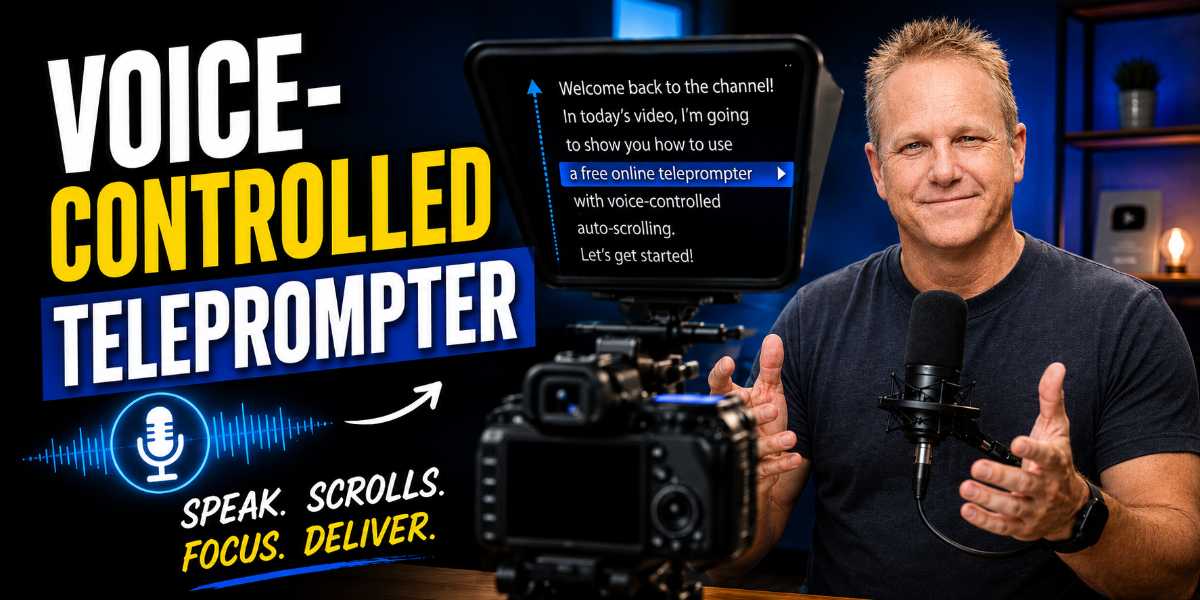
Create smoother, more confident videos with this free online teleprompter. Paste your script, set your speaking speed, and let voice-controlled scrolling move while you talk and pause when you stop.
There is nothing to install—just adjust the text, countdown and microphone settings, then switch to full-screen mode and start recording.

Browser-Based Recording Tool
Free Voice-Controlled Teleprompter
Paste your script, set your natural speaking pace, and let the teleprompter scroll only while you are talking. Pause naturally, rewind a sentence or paragraph, and retake a section without stopping your camera.
Step 1
Paste or edit your script
Step 3
Voice-controlled pause and resume
The teleprompter waits while you are quiet and resumes when you speak. Disable voice control at any time to use normal continuous scrolling.
Step 4
Start the teleprompter
Once it begins, stay quiet to pause. While paused, use the rewind controls or scroll manually to return to the section you want to retake.


How to Use the Free Online Teleprompter
The teleprompter is designed to be quick to set up, even when you want to record a video without spending half an hour configuring software.
Start by pasting your prepared script into the script editor. You can also write or edit the script directly inside the tool before beginning.
The teleprompter automatically counts the words in your script and calculates an estimated speaking time based on your selected words-per-minute rate.
Next, work through the main settings:
- Paste or enter your script.
- Select your usual speaking speed.
- Adjust the text size so you can read it comfortably.
- Increase or reduce the line spacing.
- Position the focus line at a comfortable height.
- Choose the length of the recording countdown.
- Turn on the microphone.
- Enable voice-controlled scrolling.
- Enter full-screen mode.
- Start speaking.
When voice control is active, the Free Online Teleprompter scrolls while it detects your voice. When you stop talking, it pauses after your chosen silence delay.
Once you begin speaking again, the scrolling resumes.
You can also turn voice control off and use the teleprompter as a traditional fixed-speed auto-scrolling teleprompter.
What Makes This Teleprompter Different?
Many basic teleprompters move continuously at a fixed speed.
That works reasonably well when you deliver every sentence perfectly. However, real video recording rarely happens that way.
You might pause to collect your thoughts, emphasise an important point, stumble over a sentence or decide to repeat a paragraph. Meanwhile, a traditional teleprompter keeps moving and leaves you trying to catch up.
This teleprompter is different because it responds to your voice.
It can:
- Scroll while you are speaking.
- Pause when you stop talking.
- Resume when you begin speaking again.
- Let you adjust the silence delay.
- Let you control microphone sensitivity.
- Move backwards by sentence or paragraph.
- Move forwards through the script when needed.
- Run in full-screen mode.
- Adjust to your natural speaking speed.
I originally created the tool because I was having trouble recording my own videos without a teleprompter.
📢 Shareable Insight
“The most useful tools are often created to solve a real problem—not simply because somebody wants to build another tool.”
👉 Click to Tweet
How Voice-Controlled Scrolling Works
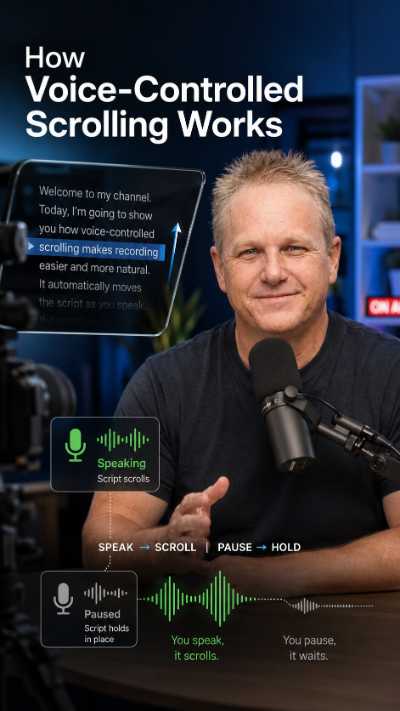
The voice-controlled feature does not need to understand or transcribe every word you say.
Instead, it monitors microphone activity and responds when it detects that you are speaking.
While your voice remains above the selected microphone sensitivity level, the script continues moving at your chosen pace.
When you stop speaking, the silence timer begins. If you remain quiet for longer than the selected delay, the scrolling pauses.
This prevents the teleprompter from immediately stopping between every short pause or breath.
For example, you could set the silence delay to approximately one second. A natural pause between sentences would usually not interrupt the flow. However, a longer pause would stop the script and hold your position.
When you begin speaking again, the Free Online Teleprompter resumes scrolling.
Your browser will ask for permission to use your microphone. You must allow microphone access before voice control can work.
Adjusting the Silence Delay
The silence delay controls how long the Free Online Teleprompter waits after you stop speaking before it pauses.
A shorter delay makes the teleprompter respond quickly. However, it may also pause during natural gaps between sentences.
A longer delay creates smoother movement during normal speech. On the other hand, the script may continue moving briefly after you intentionally stop.
Start with a delay of around one second and test it with your normal speaking style.
Reduce the delay when you want the teleprompter to stop more quickly.
Increase it when the tool pauses too often during natural speech.
There is no perfect setting for everybody because speaking styles vary. The best delay is the one that allows you to pause naturally without letting the script move too far ahead.
Adjusting the Microphone Sensitivity
Microphone sensitivity determines how much sound the teleprompter must detect before it considers you to be speaking.
The correct setting can depend on:
- Your microphone.
- Your distance from the microphone.
- Your natural speaking volume.
- Background fans or air conditioning.
- Traffic or outdoor noise.
- Other people speaking nearby.
- The acoustics of the room.
If the sensitivity is too low, background noise may keep the teleprompter moving even when you stop speaking.
If it is too high, the tool may fail to detect quieter parts of your delivery.
Use the microphone activity indicator while speaking normally. Adjust the sensitivity until your voice activates the scrolling consistently without ordinary room noise triggering it.
You may need to test the setting again whenever you change microphones, rooms or recording positions.
How to Find Your Best Speaking Speed
The words-per-minute setting controls how quickly the script moves.
A slower speaking rate may suit detailed tutorials, serious presentations or videos aimed at viewers who need time to follow instructions.
A faster rate can create more energy and suit shorter YouTube videos, reviews, commentary and promotional content.
As a general starting point:
- 110–130 words per minute creates a slower, deliberate delivery.
- 130–150 words per minute feels conversational for many speakers.
- 150–170 words per minute creates a more energetic pace.
- More than 170 words per minute may suit fast-paced content.
During my own testing, I discovered that I naturally speak at approximately 160 words per minute when recording.
Interestingly, setting the teleprompter slightly faster encouraged me to speak with more energy and enthusiasm. However, I still had to use natural emphasis and inflection so I did not sound like I was simply reading from a screen.
Your ideal setting may be completely different.
Start at around 140 words per minute and record a short test. Then increase or decrease the speed until the text feels as though it is moving with you rather than pulling you forward or holding you back.
The estimated speaking time will automatically update as you adjust the speed.
How to Avoid Sounding Like You Are Reading
A teleprompter gives you the words, but it cannot deliver them for you.
You still need to speak with expression, vary your tone and emphasise the parts that matter.
Before recording, read the script aloud at least once. A sentence that looks perfectly natural on the page may feel awkward when spoken.
During the recording:
- Look toward the camera rather than scanning widely across the screen.
- Speak to one person rather than imagining a large audience.
- Emphasise important words.
- Allow natural pauses.
- Vary your pitch and pace.
- Use facial expressions and hand gestures.
- Avoid rushing simply to keep up with the text.
- Stop and reset when the delivery does not feel right.
The adjustable focus line can help keep your eyes close to the camera lens. Position it so that the sentence you are reading remains near your natural eye level.
You do not need to read every word perfectly.
The goal is to communicate naturally and confidently, not to prove that you can complete an entire script without making a mistake.
📢 Shareable Insight
“A teleprompter should support your delivery, not take control of it.”
👉 Click to Tweet
What to Do When You Make a Mistake
Mistakes are a normal part of recording videos.
You might stumble over a word, lose your train of thought, dislike your delivery or decide that you want to repeat an entire paragraph.
You do not necessarily need to stop the camera and begin a new recording.
Instead:
- Stop speaking.
- Allow the Free Online Teleprompter to pause.
- Move backwards by one sentence or paragraph.
- Take a breath.
- Regain your position.
- Begin the section again.
- Remove the mistake during editing.
The back-sentence and back-paragraph controls make this process much easier than manually dragging a long script and trying to find your position.
You can also scroll manually when you need more control.
This approach allows you to keep the camera running while recording several attempts. Later, you can cut out the mistakes and keep the strongest version.
It can save a surprising amount of time compared with stopping the recording, returning to the camera, starting another countdown and repeating the entire setup.
Using the Recording Countdown
The recording countdown gives you time to move into position before the teleprompter begins.
Choose a countdown that suits your recording setup.
A three-second countdown may be enough when you are already seated and controlling the tool from a nearby keyboard or mouse.
A longer countdown may be useful when:
- The computer is several steps away.
- You need to move in front of the camera.
- You need to adjust your posture.
- You want a moment to prepare mentally.
- You are using a television as the teleprompter display.
Once the countdown reaches zero, the teleprompter begins according to your selected settings.
The countdown also creates a clean pause at the beginning of the recording, making the opening easier to edit.
Adjusting the Teleprompter for Comfortable Reading
The Free Online Teleprompter should be easy to read without forcing you to squint, lean forward or move your eyes noticeably from side to side.
Increase the text size when the screen is positioned farther away.
Reduce it when the text becomes so large that only a few words appear on each line.
Line spacing can also make a major difference. More space between lines can make your position easier to follow, particularly when reading from a television or larger monitor.
The focus line shows the ideal area for your eyes while speaking.
Try to position the focus line as close as possible to the camera lens. This helps you maintain stronger eye contact with the viewer.
Full-screen mode removes surrounding page elements and gives the script more room. It is particularly useful when the teleprompter is displayed on a television or separate monitor.
Before recording the full video, test:
- Text size.
- Line spacing.
- Focus-line position.
- Speaking speed.
- Silence delay.
- Microphone sensitivity.
- Screen distance.
- Camera position.
A one-minute test can prevent you from discovering a problem after recording an entire video.
Using the Teleprompter on a Television
A larger television can work well as a teleprompter when it is positioned directly behind or slightly above the camera.
This setup allows you to read from farther away while still looking toward the lens.
Open the teleprompter page on a computer and connect the computer to the television using HDMI, screen casting or another display connection.
Then open full-screen mode and adjust the text size so that it remains easy to read from your recording position.
Position the camera in front of the television where possible. The closer the script is to the lens, the more natural your eye contact will appear.
However, avoid placing the text so far from the camera that your eyes constantly move away from the viewer.
You may need to experiment with the focus-line position to match the height of the camera.
Who Can Use This Online Teleprompter?
The tool can help almost anyone who records scripted or semi-scripted video content.
That includes:
- YouTube creators.
- Bloggers recording supporting videos.
- Product reviewers.
- Online course creators.
- Coaches and consultants.
- Business owners.
- Webinar presenters.
- Public speakers.
- Social media creators.
- Podcasters recording video episodes.
- Teachers creating lessons.
- Affiliate marketers.
- Sales professionals.
- People recording welcome or training videos.
It can also help people who know their subject well but struggle to remember every point once the camera starts recording.

You do not have to read every word exactly as written. You can use the script as a structured guide and speak more freely around the main points.
Why Use a Browser-Based Teleprompter?
A browser-based Free Online Teleprompter removes many of the barriers that stop people from recording.
There is no large program to install, no complicated setup and no need to create another account.
You can open the page, paste your script and begin preparing the recording immediately.
The main benefits include:
- No software installation.
- No account required.
- Fast setup.
- Script editing inside the tool.
- Adjustable display settings.
- Voice-controlled scrolling.
- Manual scrolling controls.
- Full-screen mode.
- Use on a computer monitor or television.
- Easy access whenever you need to record.
Because the tool runs in the browser, you can also bookmark it and return whenever you have another script ready.
You can explore more browser-based resources on my Free Online Tools page:
👉 https://andrewtwelftree.com/category/tools/
Final Thoughts
A teleprompter should make recording easier without making you sound unnatural.
The free online teleprompter gives you control over your speaking speed, text size, line spacing, focus position, microphone sensitivity and silence delay.
More importantly, voice-controlled scrolling allows the script to pause when you stop speaking and resume when you continue.
When you make a mistake, you can move backwards by sentence or paragraph, take a breath and record the section again without restarting the entire video.
That makes the tool useful for real recording situations, where pauses, mistakes and retakes are completely normal.
Paste in your next script, test your speaking speed and adjust the settings until the teleprompter feels natural.
Then switch to full-screen mode, start the countdown and begin recording.
Frequently Asked Questions
Is the online teleprompter free?
Yes. You can use the free online teleprompter without paying a subscription, entering payment details or creating an account. Open the page in your browser, paste in your script, adjust the settings and begin recording.
The tool was created to provide a practical alternative to paid teleprompter software for YouTube creators, bloggers, coaches, presenters and other content creators. You can also explore my other free online tools for creating, improving and publishing content.
Do I need to install any software?
No. The Free Online Teleprompter works directly inside a supported web browser, so there is no desktop program, browser extension or mobile application to install.
Because it is browser-based, you can open it whenever you need to record a video and avoid taking up additional storage space on your computer. For the best results, use an up-to-date browser and open the published HTTPS version of the tool so microphone and full-screen permissions work correctly.
Why does the teleprompter need microphone permission?
Microphone permission allows the teleprompter to detect when you are speaking and when you have stopped. This voice activity controls whether the script continues scrolling or pauses in place.
The microphone is used to measure sound activity rather than to record your presentation. You can also turn the microphone off at any time and use the tool as a traditional fixed-speed auto-scrolling teleprompter.
Does the teleprompter record or upload my voice?
No. The teleprompter does not record your voice, save an audio file or upload your speech as part of its normal operation.
It only monitors the microphone level inside the browser so it can tell the difference between speaking and silence. Your camera, phone, webcam or video-recording software remains responsible for capturing the actual video and audio.
Does the teleprompter need to understand what I am saying?
No. The tool does not need to recognise each word or compare your speech with the written script.
Instead, it detects whether your microphone is receiving enough sound to indicate that you are speaking. This makes the voice-controlled scrolling more straightforward because the tool does not have to transcribe your voice or perfectly recognise accents, names or unusual terminology.
Can I use the teleprompter without voice control?
Yes. Voice control is optional. Turn it off to use continuous auto-scrolling based on the words-per-minute speed you selected.
This can be useful in a quiet recording where you expect to speak continuously, or when your microphone is unavailable. You can still pause manually, move backwards or forwards through the script and adjust your position whenever necessary.
What happens when I stop speaking?
When you stop speaking, the Free Online Teleprompter waits for the length of time selected in the silence-delay setting. If you remain quiet beyond that delay, the scrolling pauses and holds your position.
When you begin speaking again, the teleprompter resumes from the same area of the script. This gives you time to breathe, collect your thoughts or prepare for the next section without allowing the text to continue disappearing up the screen.
Why does the teleprompter keep moving when I am silent?
The microphone may be detecting background sound from a fan, air conditioner, television, traffic, another person or general room noise.
Adjust the microphone sensitivity until your normal speaking voice activates the scrolling but ordinary background noise does not. You may also need to move the microphone closer, reduce nearby noise or recalibrate the setting when recording in a different room.
Why does the teleprompter stop while I am speaking?
The microphone may not be detecting quieter parts of your delivery. This can happen when the microphone is too far away, the sensitivity setting is not suitable or your speaking volume changes considerably between sentences.
Check the microphone activity indicator while speaking normally. Adjust the sensitivity until both your louder and quieter phrases are detected consistently, while still preventing ordinary room noise from keeping the script moving.
Can I move backwards after making a mistake?
Yes. You can move backwards by a sentence or a paragraph, or manually scroll to an exact position in the script.
A useful workflow is to stop speaking, wait for the teleprompter to pause, move back to the beginning of the section and record it again without stopping the camera. You can then remove the mistake during editing and keep the strongest take.
What speaking speed should I choose?
Start at approximately 140 words per minute and record a short test. Many people speak naturally somewhere between 130 and 160 words per minute, although the best setting depends on the type of video and your personal delivery style.
Reduce the speed for detailed tutorials or serious presentations. Increase it when you want a faster, more energetic delivery. During my own testing, approximately 160 words per minute helped me sound more enthusiastic without feeling rushed.
Can I change the text size and line spacing?
Yes. You can increase or decrease both the text size and the space between lines to suit your screen and recording distance.
Larger text is especially helpful when displaying the teleprompter on a television or monitor positioned several feet away. However, making the text too large can cause your eyes to move noticeably across the screen, so test the settings while looking toward the camera.
What is the adjustable focus line?
The focus line marks the area where the current part of the script should remain while you are speaking. You can move it higher or lower depending on the position of your camera and display.
Place the focus line as close as possible to the camera lens. This helps your eye contact appear more natural and reduces the impression that you are looking away from the viewer to read a script.
Can I use the teleprompter on a television?
Yes. You can connect your computer to a television using HDMI, screen casting or another display connection, then open the teleprompter in full-screen mode.
Increase the text size and line spacing until the script is comfortable to read from your recording position. For more natural eye contact, place the camera directly in front of or as close as possible to the television screen.
Does the tool record my video?
No. The teleprompter displays and scrolls your script, but it does not operate your camera or create a finished video file.
Record using your phone, camera, webcam or preferred screen-recording software. After recording, you can prepare the finished video thumbnail or supporting blog images with an Image Compressor and Resizer before uploading them to your website or YouTube.
Can I edit the script inside the tool?
Yes. You can paste, write and edit your script directly inside the script area before starting the teleprompter.
This is useful for correcting awkward sentences, breaking long paragraphs into smaller sections or adjusting the wording after a practice run. The word count and estimated speaking time will update to reflect the revised script.
Can I use the teleprompter for more than YouTube videos?
Yes. The tool can be used for online courses, webinars, product demonstrations, sales presentations, welcome videos, training material, speeches and social media content.
It is also useful when turning a written blog post into a supporting video. Tools such as the SEO Content Planner, FAQ Generator and Internal Linking Tool can help organise the written article, while the teleprompter helps deliver the video version clearly and confidently.
Do I need to read every word exactly as written?
No. You can use the script as a complete word-for-word presentation or simply as a structured guide.
Some creators prefer to read the opening, important explanations and calls to action exactly, while speaking more freely during personal stories or examples. The ability to pause, move backwards and resume makes it easier to combine scripted and natural delivery.


