
Free Click to Tweet Generator for Bloggers (No Sign-Up)
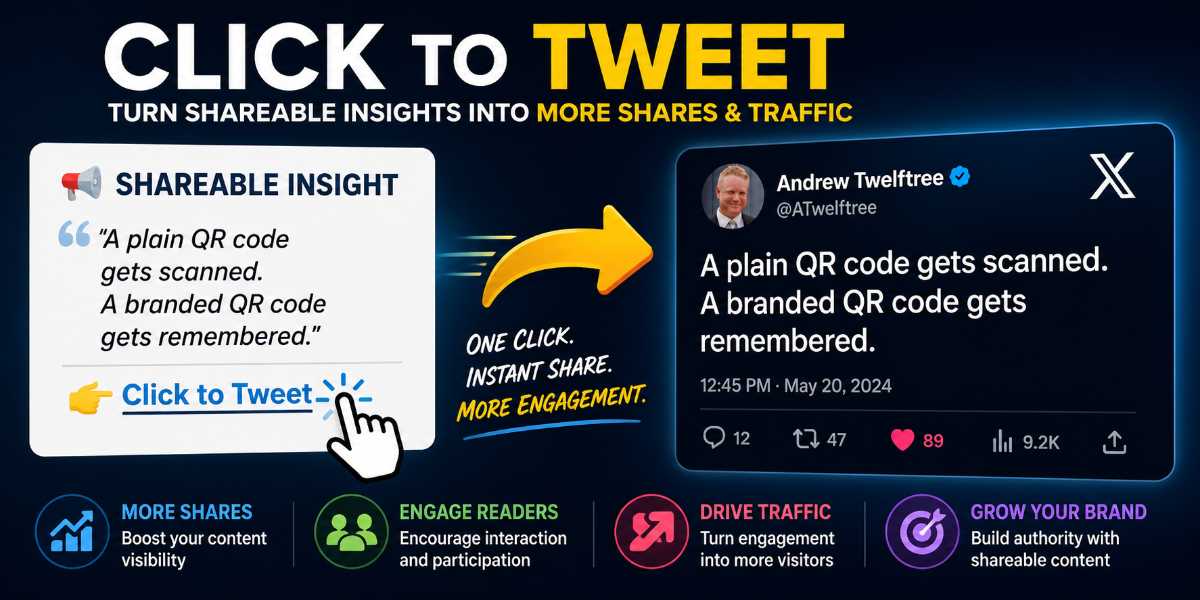
Want to make your blog posts easier to share? Use this free Click to Tweet Generator to create shareable insight blocks, tweet-ready quotes, and simple Click to Tweet links for your content.
Enter your quote, add your X/Twitter username, paste your short link, and copy the finished HTML into your blog post. No sign-up, no plugins, and no server uploads required.

Output Style
Choose plain HTML or a styled quote box. The preview and copied HTML will match your selection.Live Preview
Copy-and-Paste HTML

View Step by Step Instruction Video
What Is a Click to Tweet Generator?
A Click to Tweet Generator helps you create pre-written social media posts that readers can share with a single click.
Instead of expecting visitors to manually copy and paste your content into X (formerly Twitter), you can create a tweet-ready quote that automatically opens the posting window with your message, username, and link already included.
This makes it easier for readers to share your content and helps increase the visibility of your blog posts.
For bloggers, content creators, affiliate marketers, and online business owners, Click to Tweet links provide a simple way to encourage social sharing without being overly promotional.
How to Use the Free Click to Tweet Generator
Using the tool takes less than a minute.
Step 1: Add Your Heading
Choose the heading that will appear above your quote block.
Most users will leave this as:
📢 Shareable Insight
However, you can customize it to match your brand or writing style.
Step 2: Paste Your Quote
Enter the quote, tip, insight, statistic, or memorable statement you want readers to share.
The best quotes are usually:
- Short
- Clear
- Memorable
- Valuable
- Easy to understand without additional context
Step 3: Add Your Click to Tweet Text
This is the clickable text that appears beneath the quote.
For example:
👉 Click to Tweet
You can customize this however you like.
Step 4: Add Your X/Twitter Username
Enter your username without the @ symbol.
The generator automatically includes it within the tweet so readers can easily credit you when sharing.
Step 5: Add Your Short Link
Paste your Bitly link, short URL, or the direct blog post URL.
This ensures readers who click the shared post can find their way back to your content.
Step 6: Copy and Paste the HTML
The tool generates ready-to-use HTML that you can paste directly into WordPress or most website builders.
The finished result looks professional and encourages more engagement than a standard text quote.
Why Add Click to Tweet Quotes to Blog Posts?
Many blog posts contain useful insights that deserve to be shared.
Unfortunately, most readers won’t take the extra steps required to copy, paste, format, and publish a social media post manually.
A Click to Tweet quote removes that friction.
Instead of asking visitors to do the work themselves, you provide a one-click sharing experience.
Benefits include:
- Increased social shares
- Greater brand visibility
- Improved audience engagement
- Additional referral traffic
- More exposure for key ideas and insights
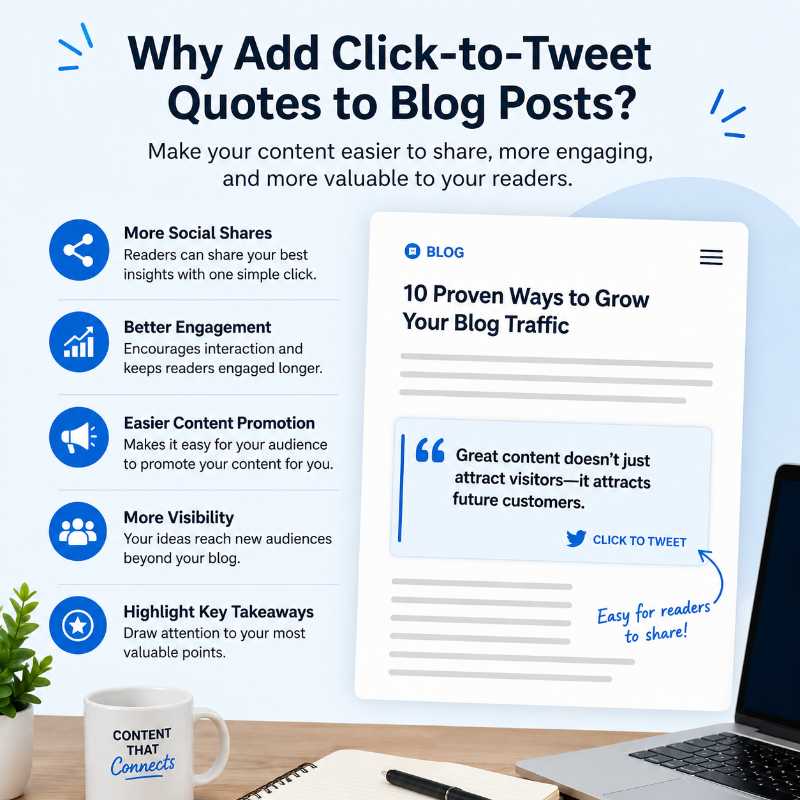
Even a small increase in sharing can create additional opportunities for traffic, backlinks, and brand awareness.
What Makes a Good Tweetable Quote?
Not every sentence in your blog post deserves its own Click to Tweet box.
The best tweetable quotes usually contain one strong idea.
Consider these examples:
Weak Example
“Content marketing can be useful for businesses.”
Better Example
“Great content doesn’t just attract visitors—it attracts future customers.”
The second example is:
- More memorable
- More specific
- Easier to share
- More likely to spark interest
When creating tweetable quotes, focus on delivering one clear takeaway that readers immediately understand.
📢 Shareable Insight
“A good tweetable quote doesn’t just repeat the article — it gives readers one clear idea they can instantly understand, remember, and share.”
👉 Click to Tweet
Best Places to Add Click to Tweet Boxes
Placement matters.
Adding too many quote boxes can become distracting.
Instead, place them strategically throughout your content.
Good locations include:
After a Key Insight
If you’ve just explained an important concept, summarize it in a shareable quote.
After Statistics or Research
Data-backed statements often perform well on social media.
Before Your Conclusion
This gives readers one final insight to share before leaving the page.
Inside Long-Form Content
Large articles can benefit from visual breaks that improve readability while encouraging engagement.
In most cases, one to three Click to Tweet boxes per article is more than enough.
Click to Tweet Links vs Social Sharing Buttons
Many websites already include social sharing buttons.
However, social sharing buttons and Click to Tweet links serve different purposes.
Social Sharing Buttons
- Share the entire page
- Leave the message up to the user
- Often receive low engagement
Click to Tweet Links
- Share a specific quote
- Control the message
- Highlight your best insights
- Create more focused social posts
Used together, both approaches can complement each other.
Tips for Using Short Links
Short links help keep social posts clean and professional.
When using Bitly or similar services:
- Double-check the destination URL
- Test the link before publishing
- Use the correct page URL
- Track performance if available
A broken short link can ruin an otherwise effective Click to Tweet campaign.
Common Mistakes to Avoid
Making Quotes Too Long
Shorter quotes generally perform better.
Using Generic Statements
Readers are less likely to share obvious or boring insights.
Forgetting Your Username
Including your username makes it easier for people to discover your profile.
Adding Too Many Quote Boxes
A few strategic placements are more effective than filling an article with share prompts.
Using Weak Calls-to-Action
📢 Shareable Insight
“Check this out — I’m using a Click to Tweet link to share a post about creating Click to Tweet links. Very meta. Very useful.”
👉 Click to Tweet
Final Thoughts
A great blog post contains valuable insights. A great Click to Tweet quote helps readers share those insights with the world.
If you want more engagement, more visibility, and an easier way for readers to promote your content, this free Click to Tweet Generator can help.
Looking for more blogging and SEO resources? Visit our growing collection of free tools designed to help bloggers, content creators, and online marketers work smarter and grow faster.
👉 Blogging and SEO Tool Suite
Frequently Asked Questions
What Is a Click to Tweet Generator?
A Click to Tweet Generator is a tool that turns a quote, tip, insight, or takeaway into a tweet-ready sharing link. When someone clicks the link, X (formerly Twitter) opens with the message already filled in, making it quick and easy to share your content.
Instead of relying on visitors to manually copy and paste your ideas, you can provide a ready-made social post that takes just one click to publish. This makes Click to Tweet links especially useful for bloggers, marketers, content creators, and business owners who want to increase visibility and engagement.
Why Should Bloggers Use Click-to-Tweet Quotes?
Click-to-tweet quotes make your content easier to share. Rather than hoping readers will remember to share your article later, you give them a ready-made social media post they can publish in seconds.
They also help break up long articles visually, highlight key takeaways, and encourage readers to engage with your content. A well-placed tweetable quote can often generate more social interaction than a generic sharing button.
How Do You Write an Effective Tweetable Quote?
The best tweetable quotes are short, clear, and valuable enough to stand on their own outside the article.
Good examples include practical tips, strong opinions, surprising insights, memorable one-liners, lessons learned, and mini summaries. Avoid quotes that require lots of context because someone scrolling through social media should immediately understand why the quote matters.
As a general rule, aim for one strong sentence rather than a full paragraph. Shorter quotes are easier to read, easier to share, and more likely to attract engagement.
Where and How Often Should I Use Click-to-Tweet Quotes?
Place Click to Tweet boxes immediately after useful insights, key takeaways, statistics, mini conclusions, or sections where the reader has just learned something valuable.
For most blog posts, one to three tweetable quotes is enough. Longer guides may benefit from three to five well-placed quotes, but quality is far more important than quantity. If a quote feels weak, obvious, or repetitive, leave it out.
Should I Add My X/Twitter Username and Hashtags?
Adding your username can help readers discover your profile and makes it easier to track shares and mentions. Hashtags can also provide additional context when used sparingly.
However, avoid overloading the tweet with hashtags. In most cases, a clean, readable quote with a link back to your article will perform better than a tweet stuffed with tags.
Can Click-to-Tweet Links Help Increase Traffic and SEO?
Click-to-Tweet links are not a direct SEO ranking factor, but they can support your overall content marketing strategy.
By making your content easier to share, they may increase social visibility, audience engagement, and referral traffic. They can also highlight important concepts within your article and encourage readers to spend more time interacting with your content.
The best results come when Click to Tweet quotes are used alongside quality content, strong internal linking, and a broader SEO strategy.
Can I Use Click-to-Tweet Quotes in Older Blog Posts?
Absolutely. Adding tweetable quotes to existing articles is one of the easiest ways to refresh older content.
Look for strong insights, useful tips, memorable takeaways, or sections that already perform well. Adding one or two shareable quotes can improve the reader experience and give you a reason to promote the article again on social media.
Do I Need a Plugin to Create Click-to-Tweet Links?
No. This Click to Tweet Generator creates the required HTML for you, allowing you to copy and paste it directly into WordPress or most website builders.
Many bloggers prefer this approach because it avoids adding another plugin to their website while still giving them complete control over the design and placement of their quote boxes.
Can I Use This Click to Tweet Generator With WordPress?
Yes. Simply generate your quote, copy the HTML, and paste it into a Custom HTML block within WordPress.
Because the tool produces clean HTML, it works with most modern WordPress themes and page builders without requiring additional plugins or complicated setup.
Is This Click to Tweet Generator Free?
Yes. The tool is completely free to use, requires no sign-up, and runs entirely within your browser.
Simply enter your quote, X/Twitter username, and short link, then copy the generated HTML into your blog post and start creating shareable content in minutes.


