
How to Create a QR Code for a PDF (Free & Easy Method)
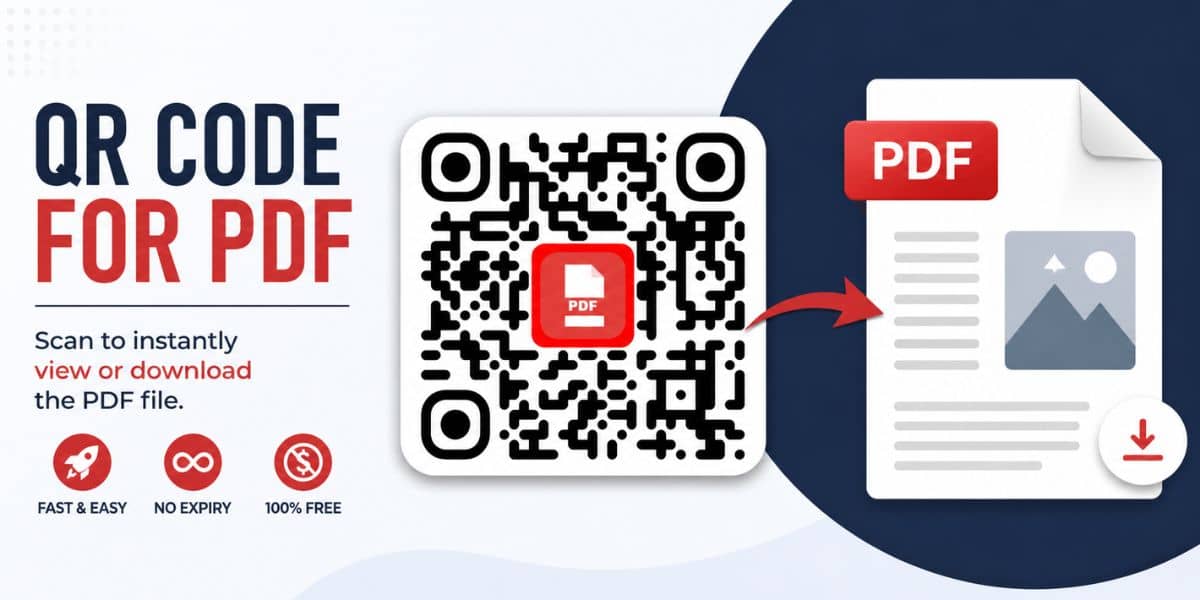
QR codes are far more powerful than most people realize. In fact, they provide one of the easiest ways to share documents instantly.
However, most tools make the process harder than it needs to be. For example, they often require sign-ups, limit downloads, or even charge ongoing fees just to keep your QR code active.
Fortunately, there’s a much simpler way.
In this guide, you’ll learn exactly how to create a QR code for a PDF for free — with no sign-up and no expiry.
Prefer to watch instead? This quick walkthrough shows how to create a QR code for a PDF, share documents instantly, and make it easier for customers or readers to access your files from any device.


📢 Shareable Insight
“The easier you make it for people to access your information, menus, guides, or brochures, the more likely they are to engage with your business. QR codes remove unnecessary steps.”
👉 Click to Tweet
What Is a QR Code for a PDF?
A QR code for a PDF allows someone to scan a code using their phone and instantly open a document.
For example, you can use it to share:
- Menus
- Guides or eBooks
- Price lists
- Brochures
- Forms or checklists
Instead of sending links manually, users can simply scan and access the file in seconds. As a result, it becomes much faster and more convenient for both you and your audience.
Step 1: Upload Your PDF Online
Before creating your QR code, your PDF needs to be accessible via a link.
You can upload your file to:
- Google Drive
- Dropbox
- Your website
Once uploaded, make sure the file is set to:
👉 “Anyone with the link can view”
Then, copy the shareable URL. This ensures that anyone who scans your QR code can actually access the document.
Step 2: Paste Your PDF Link Into the Generator
Next, head over to your free QR code generator.
Then, paste your PDF link into the input field. At this point, your QR code will already work.
However, you can customise it further if you want. For instance, you may want to add branding or change colours to match your business.
Step 3: Customise Your QR Code (Optional)
To make your QR code stand out, you can:
- Add a logo or image in the center
- Change the QR code colour
- Adjust the background colour
- Add a border around your image
For example, you might add a PDF-style icon or your business logo.
As a result, your QR code becomes more visually appealing and easier to recognise. In addition, it can help improve trust when users scan it.

Step 4: Download and Use Your QR Code
Once you’re happy with the design:
- Click download
- Save the PNG file
- Use it anywhere you like
You can place your QR code on:
- Flyers
- Posters
- Packaging
- Business cards
- Social media
As a result, you can share your PDF across both online and offline channels with ease.
Do QR Codes for PDFs Expire?
This is where most tools become frustrating.
Many QR code generators create dynamic QR codes. As a result:
- They can expire
- They may stop working after a number of scans
- They often require a paid subscription
However, the method used here is different.
These are static QR codes, which means:
- They do not expire
- They have no scan limits
- They continue working as long as your PDF link is active
Therefore, you can confidently use them long-term without worrying about hidden costs. In other words, once your QR code is created, it’s yours to use forever.
Tips for Using QR Codes for PDFs
To get the best results, keep these tips in mind:
Keep your file size reasonable
Large PDFs may take longer to load on mobile devices. Therefore, try to compress files where possible so users don’t have to wait.
Use clear file names
This helps users understand what they’re opening. In addition, it builds trust and improves the overall experience.
Test before printing
Always scan your QR code to make sure it works correctly. Otherwise, you risk printing unusable codes and wasting time or money.
Make it visible
Ensure your QR code is large enough and easy to scan. For example, avoid placing it in cluttered designs or low-contrast areas.
Why Use a Free QR Code Generator?
Many tools charge ongoing fees for features that should be simple.
However, this free tool allows you to:
- Create QR codes instantly
- Add logos or images
- Download without restrictions
- Avoid subscriptions entirely
As a result, you get a simple, reliable solution without any ongoing costs.
Final Thoughts
Creating a QR code for a PDF doesn’t need to be complicated.
In fact, once your document is uploaded, it only takes a few seconds to generate a working QR code. As a result, you can quickly share important information without friction.
Whether you’re sharing a menu, a guide, or a business document, this is one of the fastest and easiest ways to deliver content.
So, if you haven’t already, give it a try and start using QR codes to share your PDFs instantly.
🔗 Related Guides
- How to Create a QR Code for a PDF (Free)
- How to Create a QR Code for an Image
- How to Track QR Code Scans for Free
- How Small business can use QR Codes


Hellо, just wanted to say, I liked this blog post.
It was funny. Keep on posting!